
SEO Tools for Excel: Supercharge Your Spreadsheets
Discover the best SEO tools and add-ins for Excel and Google Sheets. Learn how to import keyword data, analyze rankings, and automate SEO reporting in spreadsheets.

Spreadsheets remain one of the most powerful environments for SEO work. While dedicated platforms handle crawling, rank tracking, and backlink monitoring, it is inside Excel and Google Sheets where most SEO professionals do their deepest analysis -- merging data sources, building custom scoring models, mapping keywords to URLs, and creating reports that actually get read by stakeholders. The missing piece is usually getting SEO data into the spreadsheet efficiently.
This guide covers the best SEO tools for Excel and Google Sheets, including dedicated add-ins, native integrations, and API-driven workflows that pull live keyword data directly into your cells. If you are evaluating the broader SEO tool landscape, our SEO tools guide provides a comprehensive comparison across every category.
Why Use Excel and Google Sheets for SEO
Most SEO platforms lock you into their own dashboards. Spreadsheets break that constraint and give you complete control over how data is organized, analyzed, and presented.
Custom analysis that platforms cannot replicate. Every SEO workflow is different. One team needs to cross-reference keyword rankings with conversion data from their CRM. Another needs to score content briefs against topical authority metrics. Spreadsheets let you build exactly the analysis you need without waiting for a tool vendor to add a feature.
Flexible reporting for any audience. An executive wants a one-page summary with three charts. A developer wants a prioritized list of technical fixes with URLs. A content writer wants a keyword map with search volumes and difficulty scores. Spreadsheets let you build all of these from the same underlying data.
Data merging across tools. SEO rarely involves a single data source. You might combine keyword data from SEOLens, crawl data from Screaming Frog, traffic data from Google Analytics, and conversion data from your e-commerce platform. Spreadsheets are the natural hub for joining these datasets.
Low cost, high accessibility. Google Sheets is free. Excel is included in most corporate Microsoft 365 subscriptions. Everyone on your team already knows how to open a spreadsheet. There is no onboarding cost and no per-seat pricing for your analysis environment.
Best SEO Add-ins for Excel

Several add-ins extend Excel with SEO-specific functions that run directly inside your spreadsheet.
SEO Tools for Excel by Niels Bosma
This is the most established SEO add-in for Excel and has been a staple in the SEO community for over a decade. It adds a ribbon menu and a library of custom functions that pull data from web pages and search engines.
Key features:
HtmlH1,HtmlTitle,HtmlMetaDescription-- scrape on-page elements from any URL directly in a cellHttpStatus-- check response codes for a list of URLs to find 404s, redirects, and server errorsGooglePageSpeed-- pull Core Web Vitals and page speed data from the PageSpeed Insights API- Bulk operations via the SEO Tools ribbon for processing thousands of URLs at once
- XPath extraction for pulling custom data from any HTML page
Best for: Technical SEO audits, on-page analysis, and bulk URL validation. It is particularly useful when you have a list of URLs exported from a crawl tool and need to enrich them with additional on-page data.
Limitation: It is Windows-only and requires the desktop version of Excel (not the web version). Mac users will need to use a Windows virtual machine or switch to Google Sheets alternatives.
SEOgadget for Excel
SEOgadget provides functions that connect to the APIs of popular SEO platforms, including Majestic and Moz. It lets you pull backlink metrics, domain authority scores, and link data directly into cells.
Best for: Off-page SEO analysis and competitor backlink research inside Excel. If you already have subscriptions to Majestic or Moz, this add-in saves you from exporting CSVs manually.
Power Query (Built into Excel)
Power Query is not an SEO-specific tool, but it is one of the most powerful features in modern Excel for SEO professionals. It connects to web pages, APIs, JSON feeds, and databases, then transforms the data into structured tables.
Why it matters for SEO:
- Connect directly to REST APIs (including the SEOLens API) and schedule automatic refreshes
- Combine multiple CSV exports from different SEO tools into a single unified dataset
- Clean and transform messy data (split URLs into components, normalize keyword formatting, remove duplicates) without writing formulas
- Build repeatable data pipelines that refresh with a single click
Power Query is available on both Windows and Mac in Excel 365 and is the recommended approach for anyone building automated SEO reporting workflows in Excel.
Best SEO Integrations for Google Sheets
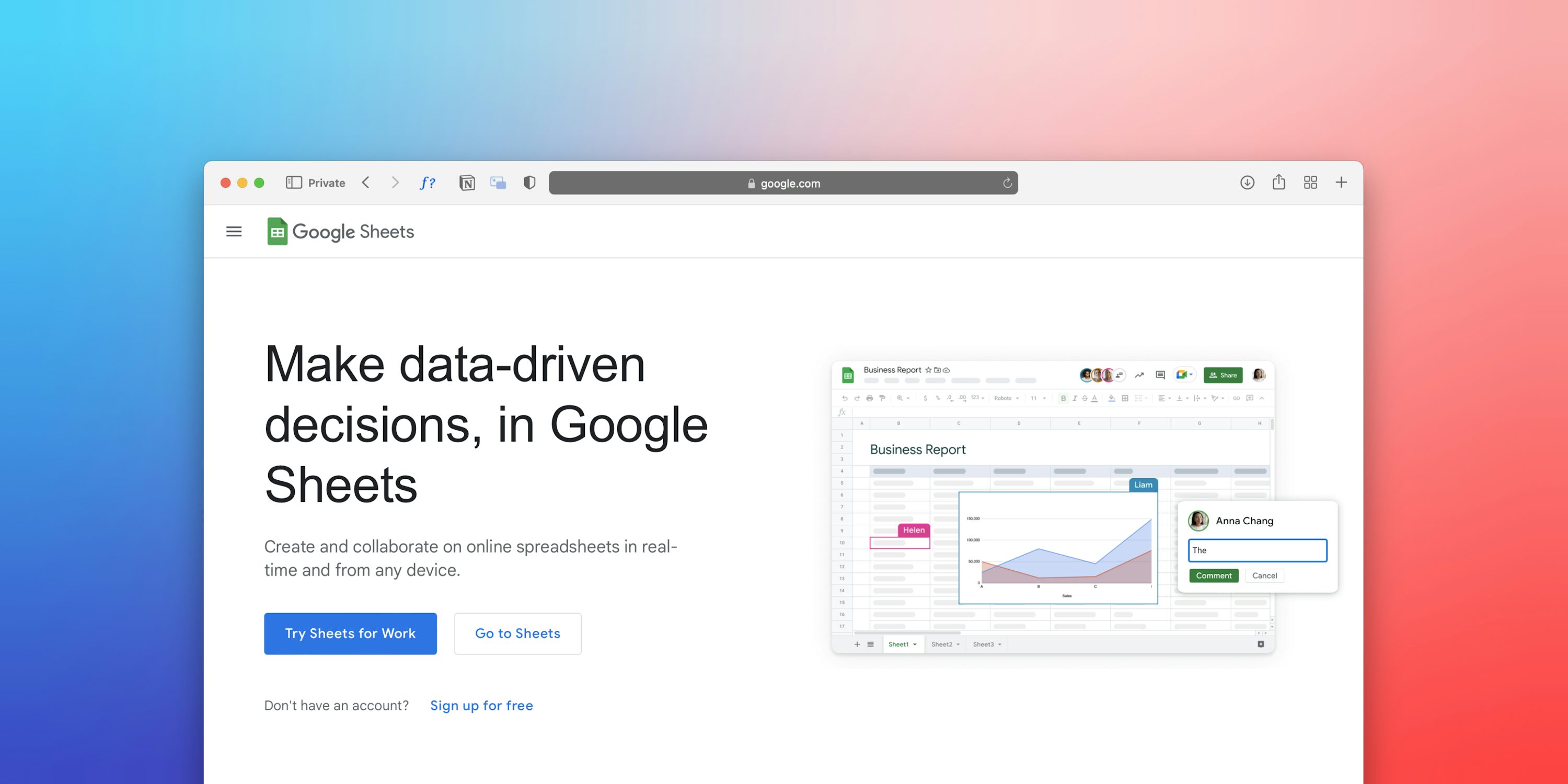
Google Sheets has its own ecosystem of add-ons and native functions that make it a strong alternative to Excel for SEO work.
Supermetrics
Supermetrics is the leading data connector for Google Sheets. It pulls data from over 100 marketing platforms directly into your spreadsheet, including Google Search Console, Google Analytics, Semrush, Ahrefs, and Facebook Ads.
Why SEOs use it:
- Schedule automated data pulls on a daily, weekly, or monthly basis
- Combine data from multiple platforms in a single sheet (for example, keyword rankings alongside ad spend data)
- Build client dashboards that update themselves without manual exports
Pricing: Starts at $69/month. It is a paid tool, but the time saved on manual data exports often justifies the cost for agencies managing multiple clients.
IMPORTXML and IMPORTDATA (Built-in Functions)
Google Sheets includes native functions that scrape data from the web without any add-on.
IMPORTXML(url, xpath_query) fetches data from any web page using XPath selectors. Common SEO uses include:
- Pulling title tags:
=IMPORTXML("https://example.com", "//title") - Extracting all H1 headings:
=IMPORTXML("https://example.com", "//h1") - Grabbing meta descriptions:
=IMPORTXML("https://example.com", "//meta[@name='description']/@content")
IMPORTDATA(url) fetches CSV or TSV data from a URL. This is useful for importing data from any API endpoint that returns plain-text tabular data.
Limitation: Google Sheets limits the total number of IMPORTXML calls per spreadsheet (typically around 50), and they can be slow on large batches. For anything beyond light scraping, an API-based approach is more reliable.
Google Sheets API Connector Add-ons
Add-ons like API Connector by Mixed Analytics let you call any REST API from Google Sheets, configure authentication, and schedule recurring data pulls. This is the simplest way to connect the SEOLens API (or any other SEO data API) to Google Sheets without writing code.
Using APIs to Pull SEO Data into Spreadsheets

For serious SEO spreadsheet workflows, APIs offer the most reliable and scalable way to get data into your cells. Here are the three most useful APIs for spreadsheet-based SEO analysis.
SEOLens API
The SEOLens API provides a free, simple REST endpoint for keyword research data, including search volume, keyword difficulty, CPC, and competition metrics. It is designed to be easy to integrate with any tool that can make HTTP requests, which makes it ideal for spreadsheet workflows.
Example: Fetching keyword data with a POST request
POST https://seolens.io/api/keywords
Content-Type: application/json

{
  "keywords": ["seo tools for excel", "seo spreadsheet", "keyword data excel"],
  "countryCode": "US",
  "languageCode": "en"
}
The response returns structured JSON with search volume, keyword difficulty, CPC, and related keyword suggestions for each term. You can parse this JSON in Power Query (Excel) or using an API connector add-on (Google Sheets) to populate your spreadsheet automatically.
Why SEOLens works well for spreadsheets:
- The free tier is generous enough for most keyword research and reporting needs
- The JSON response structure maps cleanly to spreadsheet columns
- You can batch up to 10 keywords per request, reducing the number of API calls needed
- No complex authentication -- just a straightforward POST request
If you are building a keyword tracking spreadsheet or a content planning workbook, the SEOLens API is the fastest way to enrich your data with accurate search volume and difficulty scores. For a deeper look at keyword research methodology, see our keyword research guide.
Google Search Console API
The Search Console API gives you access to your own site's performance data: impressions, clicks, average position, and CTR for every query and page combination.
How to use it in spreadsheets:
- In Google Sheets, the easiest route is the Supermetrics add-on or the Search Analytics for Sheets add-on, which wraps the API in a user-friendly interface
- In Excel, use Power Query to connect to the API endpoint with OAuth 2.0 authentication
- The API returns up to 16 months of historical data, which is excellent for trend analysis
Best for: Tracking your own site's organic performance, identifying queries where you rank on page two (positions 11-20) that could be pushed to page one with targeted optimization, and monitoring CTR changes after title tag updates.
Google Analytics Data API
The GA4 Data API provides access to your traffic, user behavior, and conversion data. When combined with keyword data from the SEOLens API or ranking data from Search Console, it completes the picture from keyword to click to conversion.
How to use it in spreadsheets:
- The Google Analytics add-on for Google Sheets is the simplest option and is maintained by Google
- In Excel, Power Query can connect to the API, though the setup requires more configuration than the Sheets add-on
- Pull metrics like sessions, engaged sessions, conversions, and revenue segmented by landing page and source
Best for: Measuring the business impact of SEO work by connecting organic traffic to actual conversions and revenue.
Essential SEO Formulas and Functions for Excel

Once your SEO data is in the spreadsheet, these formulas and techniques will help you analyze it effectively.
VLOOKUP and INDEX-MATCH for Keyword Mapping
Keyword-to-URL mapping is one of the most common SEO spreadsheet tasks. You have a list of target keywords in one sheet and a list of URLs with their current rankings in another. VLOOKUP or INDEX-MATCH lets you join them.
=INDEX(Rankings!B:B, MATCH(A2, Rankings!A:A, 0))
This formula looks up the keyword in cell A2 against the keyword column in your Rankings sheet and returns the corresponding URL. INDEX-MATCH is preferred over VLOOKUP because it works regardless of column order and handles large datasets more efficiently.
Use case: Build a keyword map that shows every target keyword, its assigned URL, current ranking position, search volume (pulled from the SEOLens API), and a status column indicating whether the page needs optimization.
Conditional Formatting for Keyword Difficulty Scoring
Apply conditional formatting to your keyword difficulty column to create an instant visual scoring system:
- Green (KD 0-30): Low difficulty, good opportunities for new or smaller sites
- Yellow (KD 31-60): Medium difficulty, achievable with solid content and some backlinks
- Red (KD 61-100): High difficulty, requires significant authority and a strong backlink profile
In Excel, select the KD column, go to Home > Conditional Formatting > Color Scales, and choose a green-yellow-red gradient. This turns a column of numbers into an at-a-glance prioritization tool.
Pivot Tables for Keyword Grouping
Pivot tables are essential for making sense of large keyword datasets. Common SEO pivot table setups include:
- Group keywords by topic or intent. Add a "Topic Cluster" column to your keyword data, then pivot to see total search volume and average KD per cluster. This tells you which content areas have the most opportunity.
- Group pages by performance tier. Pivot your Search Console data by page, summing clicks and impressions, to identify your top performers and underperformers.
- Track ranking distribution over time. Pivot your ranking data by date and position range (1-3, 4-10, 11-20, 21+) to visualize how your overall ranking profile is improving or declining.
Building an SEO Dashboard in Excel

A well-built SEO dashboard in Excel or Google Sheets gives you and your stakeholders a single view of organic performance that updates automatically.
Step 1: Set up your data connections. Use Power Query (Excel) or API connector add-ons (Google Sheets) to pull data from the SEOLens API for keyword metrics, Google Search Console for ranking and traffic data, and Google Analytics for conversion data. Configure these connections to refresh on a schedule.
Step 2: Create a summary metrics row. At the top of your dashboard, display the key numbers: total organic sessions (current month vs. previous month), total keywords ranking in the top 10, average keyword difficulty of your target list, and total conversions from organic traffic.
Step 3: Build your charts. Add a line chart for organic traffic trend (monthly), a bar chart for ranking distribution across position ranges, and a scatter plot comparing search volume vs. keyword difficulty to visualize the opportunity landscape.
Step 4: Add an issues and opportunities table. Below the charts, include a table of keywords where you rank in positions 11-20 (the "striking distance" keywords), sorted by search volume. These represent your highest-impact optimization targets.
Step 5: Include a content calendar section. Map upcoming content pieces to their target keywords, planned publish dates, and the keyword metrics from SEOLens. This keeps content production aligned with SEO strategy in a single view.
Templates and Resources

Here are practical templates you can copy and adapt for your own SEO spreadsheet workflows.
Keyword Research Template. A spreadsheet with columns for keyword, search volume, keyword difficulty, CPC, current ranking URL, current position, intent classification, and priority score. Set up a Power Query or API connection to populate the first four columns from the SEOLens API, then fill in the rest manually or from Search Console exports.
Monthly SEO Report Template. A Google Sheets workbook with tabs for Executive Summary (charts and KPI summaries), Keyword Rankings (full keyword list with month-over-month position changes), Traffic Analysis (Search Console and GA4 data merged by landing page), and Action Items (prioritized list of next steps).
Content Gap Analysis Template. A spreadsheet that lists competitor keywords you do not rank for, with columns for search volume, keyword difficulty, competitor URL, and your planned target URL. Use the SEOLens API to populate volume and difficulty data, then sort by opportunity score (high volume and low difficulty first).
Technical SEO Audit Checklist. An Excel workbook with a URL list and adjacent columns for HTTP status, title tag, meta description, H1, page speed score, and mobile-friendly status. Use the SEO Tools for Excel add-in or IMPORTXML functions to populate these columns in bulk.
All of these templates start with a simple principle: get the data into the spreadsheet automatically, then build your analysis on top. The combination of SEO APIs and spreadsheet functions eliminates the manual export-import cycle that wastes hours every week.
Conclusion

SEO tools for Excel and Google Sheets turn your spreadsheet into a command center for keyword research, competitive analysis, and performance reporting. Whether you use dedicated add-ins like SEO Tools for Excel by Niels Bosma, native functions like IMPORTXML, or API connections to services like SEOLens, the goal is the same: get accurate SEO data into your cells so you can analyze it your way.
Start with one workflow -- keyword research is the easiest entry point -- and expand from there. Pull keyword data from the SEOLens API into a simple spreadsheet, add conditional formatting for difficulty scores, and you will have a more useful keyword analysis tool than many paid dashboards offer. As your needs grow, layer in Search Console data, build pivot tables for keyword grouping, and create a dashboard that keeps your entire team aligned on organic performance. For a full overview of the tools available to support this work, revisit our SEO tools guide.
Ready to research your keywords?
Try SEOLens for free — get search volume, keyword difficulty, CPC, and competition data instantly.
Try SEOLens Free